lazygit for Agent Workflows
Using lazygit inside tmux to review, stage, and manage code produced by Claude Code agent teams
What you'll learn
bind g display-popup pattern
What lazygit Is and Why It Matters for Agent Workflows
lazygit is a terminal-based git UI that replaces the raw git command line with a keyboard-driven, pane-based interface. It shows your working tree, staged changes, commit history, branches, and stashes in a single screen — all navigable without leaving the terminal.
For human developers, lazygit speeds up common operations. For agent workflows, it solves a more specific problem: you need a fast way to review code you didn't write. When Claude Code agents are committing multiple times per hour across several worktrees, the volume of output quickly exceeds what raw git log and git diff can handle ergonomically. lazygit gives you a structured interface for triaging that output — scanning commits, drilling into individual hunks, squashing noise, and cherry-picking across branches — all without breaking your tmux session context.
The architecture for serious agent workflows combines three layers in a specific relationship:
tmux              → visual/logical organization of terminal space
lazygit           → git operations and code review (popup or dedicated pane)
Claude Code       → executes work inside isolated git worktrees
Each Claude Code agent gets a separate git worktree — its own directory on disk, all pointing to the same .git object store. Each worktree gets a dedicated tmux window. You review its output through lazygit, which you invoke from that same window without losing your place.
Setting Up lazygit as a tmux Popup
The cleanest way to access lazygit in a multi-agent session is as an on-demand floating popup. Add this to your ~/.tmux.conf:
# prefix + g opens lazygit in a floating window
# centered, 80% width and height, in the current pane's directory
bind g display-popup -E -xC -yC -w 80% -h 80% -d "#{pane_current_path}" lazygit
The flags break down as: -E closes the popup when lazygit exits, -xC -yC centers it on screen, -w/-h set the dimensions, and -d "#{pane_current_path}" opens lazygit in the working directory of whatever pane you're currently in. This last part is critical — it means pressing prefix + g in an agent's worktree window opens lazygit scoped to that agent's branch, not the main repo.
Press q inside lazygit to close the popup and return exactly where you were.
If you prefer lazygit always visible, split the agent window horizontally and run lazygit in the right pane: tmux split-window -h -p 40 lazygit. The popup approach is generally preferred because it maximizes screen space for Claude Code output while still being one keypress away.
lazygit Panel Overview
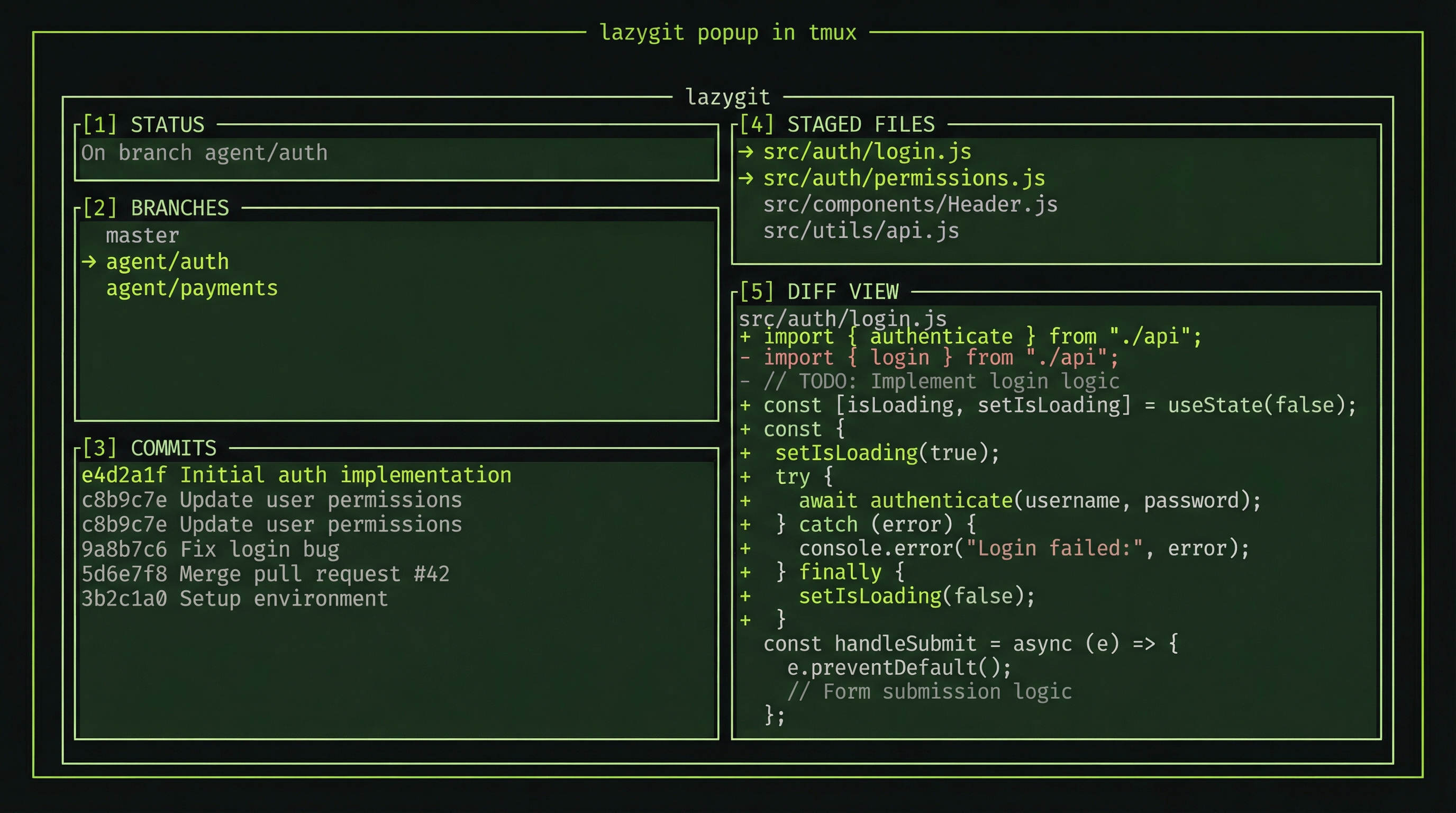
lazygit has five main panels, navigated with number keys 1–5. Understanding which panel to reach for which task is the core skill:
| Panel | Key | Primary Use with Agents |
|---|---|---|
| Status | 1 | Repo overview, recent branches, worktree state |
| Files | 2 | Staging individual files or hunks from agent changes |
| Local Branches | 3 | Switching branches, rebasing agent branches onto main |
| Commits | 4 | Reviewing agent history, squashing, cherry-picking, resetting |
| Stash | 5 | Temporary state management during rebase conflicts |
Within any panel, use j/k to move down/up, Enter to drill in, Esc to go back, and ? to see all keybindings available in the current context.
Essential Keybindings for Reviewing Agent Output
Commits Panel — Your Primary Review Tool
The Commits panel (key 4) is where you spend most of your time after agents have been working. Navigate here first when reviewing an agent's output.
| Key | Action | When to Use |
|---|---|---|
| Enter | View commit's changed files | First pass review — see what the agent touched in each commit |
| i | Start interactive rebase on full branch | Clean up the entire branch before merging |
| e | Start interactive rebase from this commit | Rebase only the commits from a specific point forward |
| s | Squash into commit below | Combine two agent commits, keeping the lower message |
| f | Fixup into commit below | Squash and discard the upper commit's message |
| F | Create fixup! commit | Mark a commit for later autosquash |
| S | Apply all fixup! commits | Execute all pending fixups in one shot |
| d | Drop commit | Delete a bad agent commit entirely |
| r | Reword commit message | Fix an agent's poorly formatted commit message inline |
| C | Copy/mark for cherry-pick | Mark a commit to transplant to another branch |
| V | Paste (cherry-pick) | Apply a marked commit to the current branch |
| g | Reset (soft / mixed / hard) | Roll back to before the agent's work |
| Ctrl+j / Ctrl+k | Move commit down / up | Reorder agent commits during interactive rebase |
| z | Undo last git operation | Recover from an accidental drop or reset |
Files Panel — Selective Staging
When an agent makes broad changes you want to partially accept, the Files panel gives you line-level control.
| Key | Action |
|---|---|
| Space | Stage / unstage file |
| a | Stage / unstage all files |
| Enter | Enter line/hunk staging view for this file |
| d | Discard changes to file (reject agent's change) |
| c | Commit staged changes |
| Ctrl+f | Find base commit for a fixup — useful when you know a change belongs to a specific earlier commit |
Inside the hunk staging view (after pressing Enter on a file), use Space to toggle individual hunks, a to switch between hunk and line selection mode, and v to enter range select for fine-grained staging of exactly the lines you want to keep from the agent's output.
Branch Naming Conventions for Agents
Establishing a consistent naming convention for agent branches pays dividends when you have five or ten branches active simultaneously. The standard pattern is an agent/ prefix:
# Create worktrees with agent-scoped branch names
git worktree add -b agent/auth ../repo-agent-auth
git worktree add -b agent/payments ../repo-agent-payments
git worktree add -b agent/tests ../repo-agent-tests

# Verify all active worktrees
git worktree list
The prefix approach works with lazygit's branch color configuration, with tab completion, and with any git branch --list 'agent/*' queries you run in scripts or session setup. It also makes clear in the Branches panel which branches belong to agents versus human-created feature or fix branches.
Configuring lazygit for Agent Branch Patterns
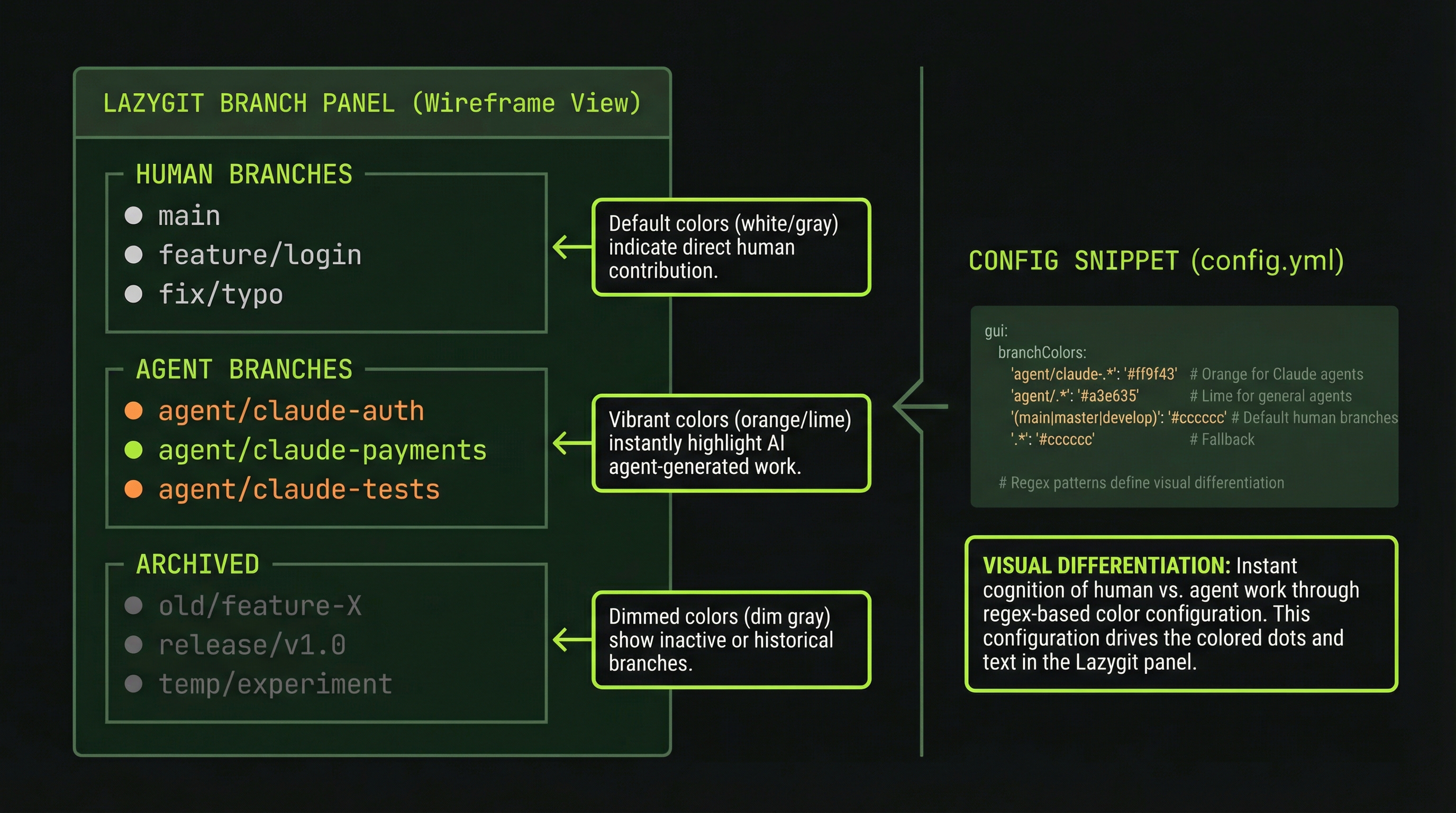
lazygit's configuration file lives at ~/Library/Application Support/lazygit/config.yml on macOS, or ~/.config/lazygit/config.yml on Linux. The following configuration is tuned for agent workflows — color-coded branches, expanded diff context, auto-refresh, and whitespace tolerance:
gui:
  # Color-code agent branches for immediate visual recognition
  branchColorPatterns:
    '^agent/': '#ff9966'     # orange for all agent/ branches
    '^feat/':  '#88cc44'     # green for human feature branches
    '^fix/':   '#cc4444'     # red for fix branches
    '^main$':  '#4488ff'     # blue for main

  # Show more diff context — agents change more lines than humans
  diffContextSize: 10

  # Navigate complex file hierarchies from large agent changes
  showFileTree: true

  # Keep scroll position comfortable during long commit lists
  scrollOffMargin: 5

  # Auto-expand the focused side panel
  expandFocusedSidePanel: true

  # Show what git commands lazygit actually runs
  showCommandLog: true
  commandLogSize: 8

git:
  # Ignore reformatting — agents often reformat code as a side effect
  ignoreWhitespaceInDiffView: true

  # Auto-fetch so you can see if agents pushed to remote
  autoFetch: true
  autoFetchInterval: 60  # seconds

  # Auto-refresh when files change on disk (agents are actively writing)
  autoRefreshInterval: 1000  # milliseconds
The branchColorPatterns section is the highest-impact setting for multi-agent work. In the Branches panel, every agent/* branch lights up in orange, making them immediately distinguishable from your own branches at a glance without reading the full name.
When lazygit runs inside tmux, system clipboard operations may not work. Add this to your config to fix it on macOS: os: { copyToClipboardCmd: "tmux load-buffer - && tmux save-buffer - | pbcopy" }. On Linux with xclip: os: { copyToClipboardCmd: 'xclip -selection clipboard' }.
Cherry-Picking Commits Across Worktree Panes
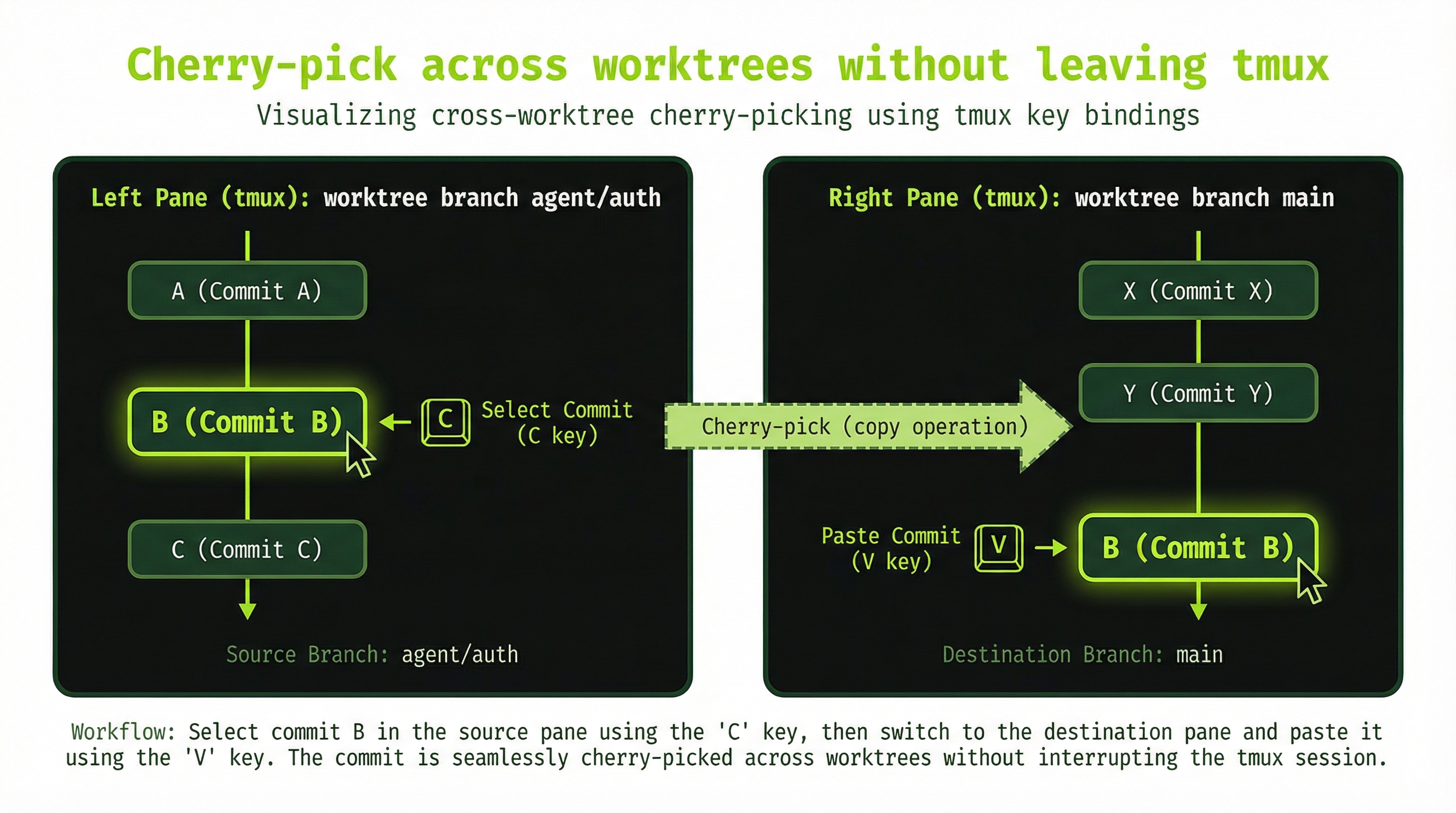
One of the most practical cross-agent operations is cherry-picking: Agent A builds a utility function that Agent B also needs. Rather than duplicating the work or waiting for a merge, you can transplant the specific commit directly.
The workflow spans two lazygit instances — one per worktree — and uses lazygit's persistent cherry-pick buffer:
- In Agent A's tmux window, open lazygit (prefix + g)
- Navigate to the Commits panel (
4) - Press
Con the commit you want — it's now marked in lazygit's buffer - Press
qto close the popup - Switch to Agent B's tmux window (Ctrl+B then window number)
- Open lazygit for Agent B (prefix + g)
- Navigate to the Commits panel and press
Vto paste (cherry-pick) - If conflicts arise, use the merge conflict UI:
Spaceto pick hunks,bto take all hunks from one side
You can mark multiple commits with C before pressing V — lazygit applies them all in sequence. The cherry-pick buffer persists across lazygit sessions, so you can mark commits, close the popup, move around, and apply them later.
Interactive Rebasing to Clean Agent Commit Noise
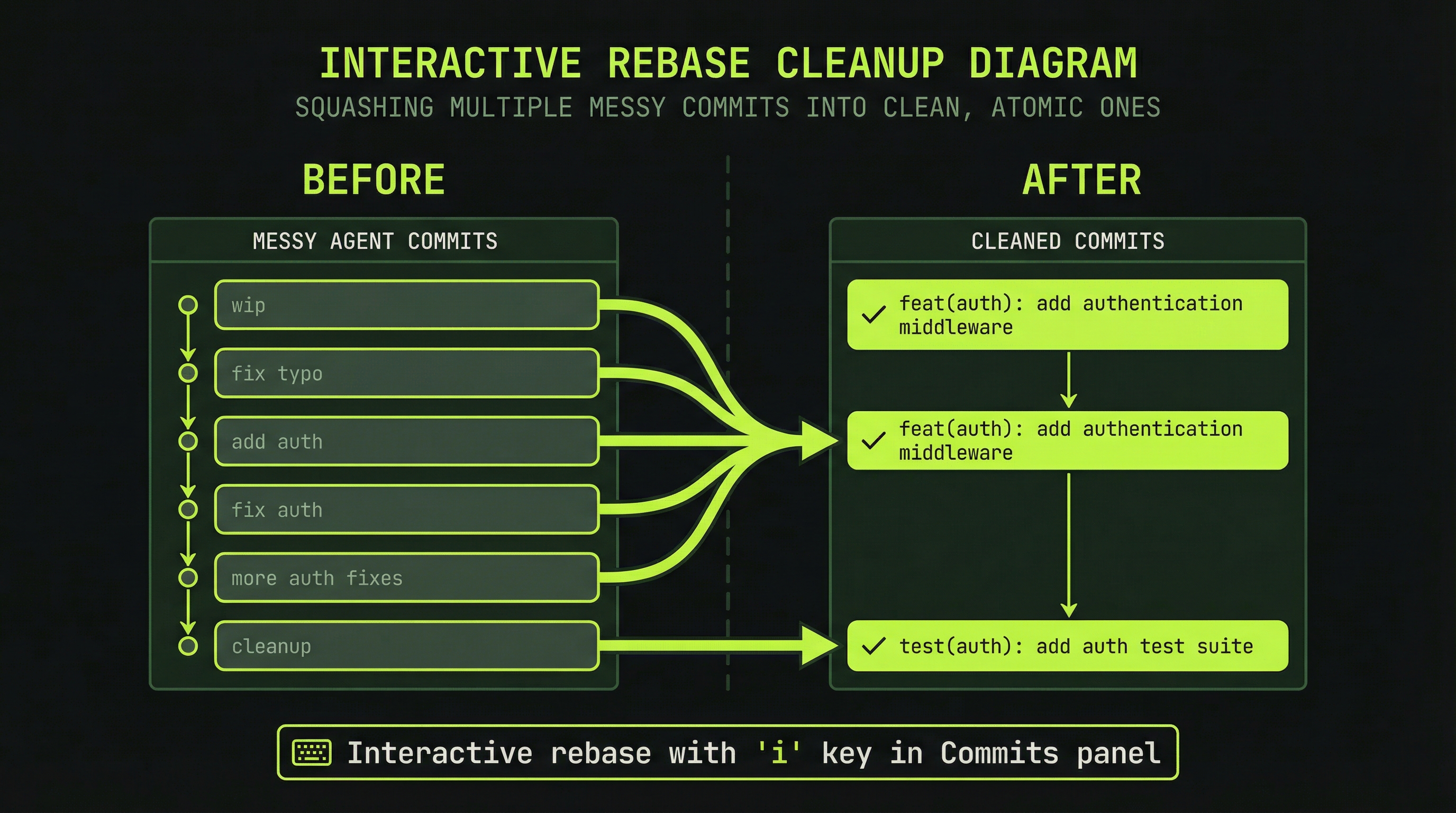
Agents frequently produce noisy intermediate commits: "WIP", "fix previous", "trying different approach", "revert last change". Before integrating an agent branch into main, you want to consolidate this history into a clean, reviewable set of commits.
The interactive rebase workflow in lazygit:
- Navigate to the Commits panel (
4) - Press
ito open an interactive rebase of the entire branch - In the rebase view, for each commit you want to eliminate:
s— squash into the commit below (combine, keep both messages)f— fixup into the commit below (combine, discard this message)d— drop entirelyr— reword the messageCtrl+j/Ctrl+k— reorder commits
- Confirm to execute
For a faster approach when agents have already been told to use Conventional Commits format (covered below), use the autosquash pattern: as you review commits, press F to create fixup! markers, then press S on the base commit to apply all fixups at once. This keeps your review pass and your history cleanup in a single workflow.
Resetting When an Agent Goes Off the Rails
Sometimes an agent takes a wrong turn and produces a sequence of commits you don't want at all. The reset workflow:
- In the Commits panel, navigate to the last known-good commit
- Press
gto see reset options: soft (keep changes staged), mixed (unstage changes), or hard (discard everything) - If you're unsure, use soft reset first — you keep all the agent's file changes, just uncommitted, so you can review before discarding
- Press
zto undo any reset operation if you change your mind
The reflog (accessible through the reset menu) is your safety net. lazygit never truly loses commits — even hard resets are recoverable through the reflog if you act before garbage collection runs.
CLAUDE.md Standards for Cleaner Agent Commits
The most effective intervention happens before you need to clean up: instruct your agents to produce lazygit-friendly commits from the start. Add the following to your project's CLAUDE.md:
## Git Commit Standards

- Use Conventional Commits format: `type(scope): description`
  - Types: feat, fix, refactor, test, chore, docs, perf
  - Example: `feat(auth): add JWT refresh token logic`
- Make atomic commits: one logical change per commit
- Commit after each discrete completed task, not after every file save
- Never combine unrelated changes in one commit
- Commit message body should explain WHY, not WHAT
- Do not create WIP, "temp", or "trying something" commits
- If work is incomplete, do NOT commit — leave changes in working tree
Agents that follow these standards produce commit histories that are immediately readable in lazygit's Commits panel — each commit's purpose is clear, changes are scoped, and there's no noise to squash before review. The type(scope): description format also pairs well with lazygit's git.commitPrefixes validation config if you want to enforce format at the git level.
A Daily Multi-Agent Review Workflow
This is the practical pattern for reviewing agent output at the start of a work session or after agents have been running:
# 1. Attach to your project session
tmux attach -t project-name

# 2. For each agent window (Ctrl+B [window-number]):
#    - Press prefix+g to open lazygit popup
#    - Navigate to Commits panel (4)
#    - Press Enter on each new commit to review files
#    - Use } to expand diff context if needed
#    - If clean: q to close
#    - If needs cleanup: i for interactive rebase

# 3. When an agent branch is ready to integrate:
#    - Run final interactive rebase (i) to clean history
#    - Switch to main worktree window
#    - Open lazygit (prefix+g)
#    - Branches panel (3) → select agent branch → r to rebase onto main
#    - o to open pull request from within lazygit

# 4. Cleanup finished worktrees
git worktree remove ../repo-agent-auth
git branch -d agent/auth
Ecosystem Tools Worth Knowing
Several tools have emerged that automate the manual worktree and tmux setup described in this module. They are worth knowing even if you prefer the manual approach, because they encode the same patterns in code you can learn from:
| Tool | What It Does |
|---|---|
| uzi | CLI wrapping tmux and worktrees for parallel agents. uzi start --agents claude:3 --prompt "..." boots the full stack automatically. |
| agenttools/worktree | GitHub issue → worktree → Claude Code → tmux window, one command. Automates the setup phase entirely. |
| ittybitty | TUI dashboard for multiple Claude Code instances with inter-agent messaging via ib send. |
| workmux | Lightweight tmux and worktree automation focused on minimal configuration. |
| lago-worktree | Multi-service orchestration — separate worktrees per service (frontend, API) per ticket. |
These tools handle session initialization and worktree provisioning. lazygit remains your review interface regardless of which automation layer you use to set up the sessions — the keybindings, config, and workflows described in this module apply across all of them.
Pair lazygit with tmux-resurrect and tmux-continuum to persist your full agent session across terminal restarts. In your tmux config: set -g @resurrect-processes 'lazygit nvim "~claude"'. This restores your lazygit instances alongside your Claude Code processes when you reattach after a reboot.
bind g display-popup line to ~/.tmux.conf and can open lazygit as a floating popup from any agent window
Enter, and use i to start an interactive rebase that squashes noisy agent commits
C in one worktree's lazygit instance and apply it with V in another
CLAUDE.md so agents produce cleaner histories by default